1. About
Description
This interface provides History details of Items. Example User given any one of the Item Id , then the Item Details will be Retrieved
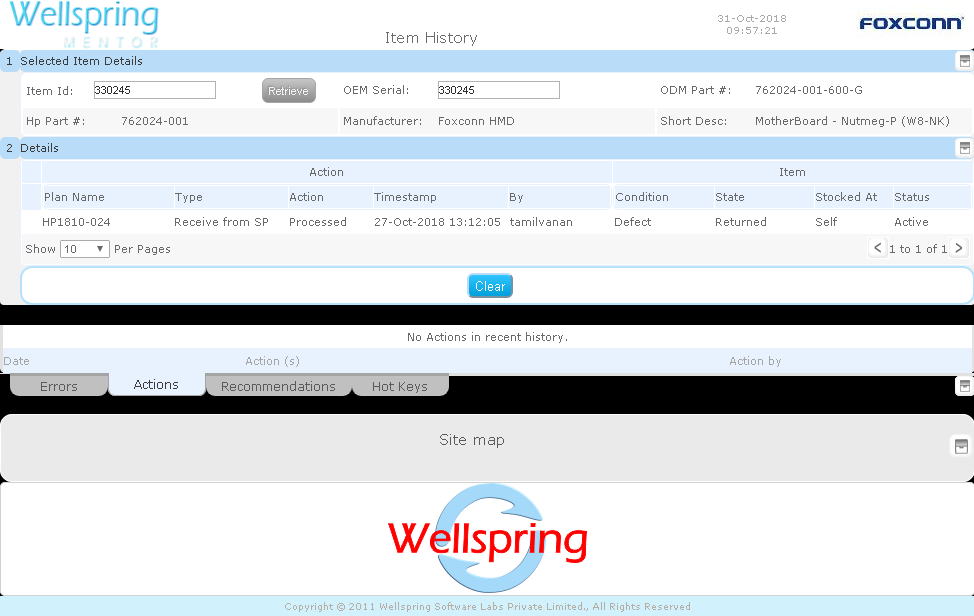
Gallery
Contents
  1. About
  2. Data
  3. Actions
  4. HowTo Videos
How to open this Interface


# How to navigate to "Item History" web page
Steps Instructions Visuals
1 Login Login using your user id and password. (If you do not know your user id / password please contact your Coordinator)
2 Click this Button Open the menu by clicking the “Green button” on the bottom-right corner
3 Open this APP Open this app by clicking the “Item History” icon from Menu
2. Data (Related to this Interface)
#
Name
Description
Type
Field Type
Criteria
Source
1
Item Id
The Item Id
Text
Text Box
Only the available Item Ids will be entered by user
2
OEM Serial
The OEM Serial Number
Number
Text Box
The user will be enter the Item's OEM Serial Number
3
ODM Part
The ODM Part
Number
Auto Display
The given item's ODM Part Number will be displayed
4
Manufacturer
The Manufacturer
Text
Auto Display
The given item's Manufacturer will be displayed
5
Short Desc
The Short Description
Text
Auto Display
The given item's Short Description will be displayed
6
Plan Name
The Plan Name
Text
Auto Display
Only the available Plan name will be displayed
7
Type
The Plan Type
Text
Auto Display
The given Plan's Type will be displayed
8
Action
The Action
Text
Auto Display
Only the available Plan's Action will be auto diplayed
9
TimeStamp
Date & Time
Date
Auto Display
The plan's Date and Time will be displayed
10
By
The Action is created by
Text
Auto Display
The name will be displayed by Who can created this Action
11
Condition
The Item's Condition
Text
Auto Display
Only the available item's condition will be displayed
12
State
The Item's State
Text
Auto Display
Only the available item's State will be displayed
13
Stocked At
The Stocked At
Text
Auto Display
Only the available item's Stock details will be displayed
14
Status
The Item's Status
Text
Auto Display
Only the available item's status will be displayed
15
Show Per Pages
The number of Items displayed in per page
Select
DropDown
The user can change the display count of the Items by selecting the values in "Show Per Pages"
3. Actions (Related to this Interface)
# Name IN OUT
Input Trigger Criteria Output Direct Indirect
1 Retrieve 1.Item Id Retrieve "Item Id" field is mandatory The given Item id details will be retrieved
2 Clear The Clear Clear button Their must be atleast one Item details must be added in "Item List" The given Item id's details will be cleared
3 Pagination Check List Master details
  1. Next button
  2. Previous button
Their must be suficient item details must be added in list The user will be viewed all the Items using next and previous button
4. How To Videos