1. About
Description
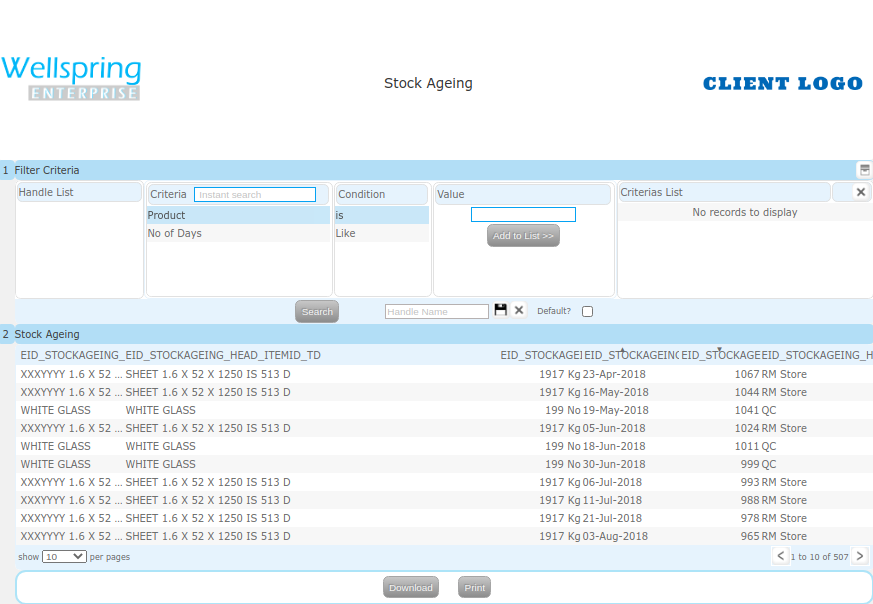
The New StockAgeingList details can be saved using this Interfece.It is capable of caputuring the StockAgeing List details like Filter By in the filter criteria list are select by their conditions The SaleReturn List screen is used collect the information about the StockAgeing. The details should be saved , View and dowload in pdf format and Excel format this screen is used for making StockAgeing List Details
Gallery
Contents
  1. About
  2. Data
  3. Actions
  4. HowTo Videos
How to open this Interface


# How to navigate to "StockAgeing List" web page
Steps Instructions Visuals
1 Login Login using your user id and password. (If you do not know your user id / password please contact your Coordinator)
2 Click this Button Open the menu by clicking the “Green button” on the bottom-right corner
3 Open this APP Open this app by clicking the “StockAgeing List” icon from Menu
2. Data (Related to this Interface)
#
Name
Description
Type
Field Type
Criteria
Source
1
Product
Product
Text
Auto Displayed
Only the Product Should get AutoDisplayed
2
Manufacturer Name
Manufacturer Name
Text
Auto Displayed
Only the Manufacturer Name Should get AutoDisplayed
3
Batch
Batch
Text
Auto Displayed
Only the Batch Batch Should get AutoDisplayed
4
Item Id
Item Id
Number
Auto Displayed
Only the Item Id Should get AutoDisplayed
5
stock QTY
stock QTY
Number
Auto Displayed
Only the stock QTY Should get AutoDisplayed
6
Stock Rec Date
Stock Rec Date
Date
Auto Displayed
Only the Stock Rec Date Should get AutoDisplayed
7
Criteria
Display the Criteria list
Text
Instant Search
Criteria list can be selected from the Instant Search
8
Value
Display the list of criteria in options
Text
Instant Search
Value can be selected from the Instant Search
9
Handle Name
Display the Handle List in t he screen
Text
Text box
The Handle List should be Entered
10
Default
Enable the check box
Text
Check box
The Default Check box is enable or disable
11
Show Per Pages
The number of Product displayed in per page
Number
DropDown
The user can change the display count of the Product by selecting the values in "Show Per Pages"
3. Actions (Related to this Interface)
# Name IN OUT
Input Trigger Criteria Output Direct Indirect
1 Save Filter criteria StockAgeing Save button Filter criteria StockAgeing are mandatory fields The given User details will be saved
2 Add To List Value Add To List button The Value field is a mandatory field and the value of "Value" field will be changed based on the Criteria The selected Work Flow details will be viewed and the details can be changed and saved again
3 Search the list Value Search button Their must be atleast one Filter Criteria Value must be added in "Criteria List" The given Value will be added into the Criteria List
4 Edit Criteria List Value Edit button Their must be atleast one Filter Criteria Value must be added in "Criteria List" to Edit The particular Filter Value will be populate in "Value" field for editing
5 Delete Criteria List Value Delete button Their must be atleast one Filter Criteria Value must be added in "Criteria List" The particular "Value" will be removed from the Criteria List
6 Download StockAgeing List Download button Only the available StockAgeing List can be downloaded Excel Pdf The StockAgeing List will be downloaded in a Excel or PDF
7 Save Handle Handle List Save Button Their must be atleast one Filter Criteria Value must be added in "Criteria List" The Added Handle Name Should get Displayed
8 DeleteHandle Handle List Delete button Only the Selected Handle Name must be Deleted The particular "Handle" will be removed from the Handle List
9 Pagination StockAgeing List Details Added Schedules
  1. Next button
  2. Previous button
Their must be suficient StockAgeing List must be added in list The user will be viewed all the StockAgeing List Details using next and previous button
4. How To Videos