1. About
Description
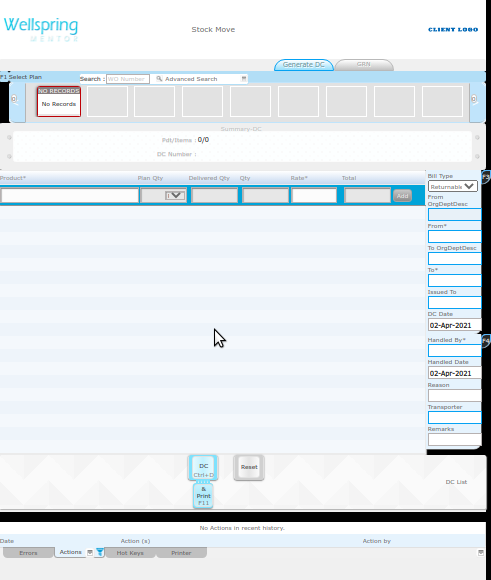
Dc means Challan or Bill. Stock Move Generate DC interface is used to Create the DC for move the stock. DC Number, Product Name, Quantity, Remarks these all details are contains in this DC. The Materials moved between locations, This Interface is the one helps you. You can move some Stock adhoc or move a stock to Fulfill user's need. It is aslo capable the capturing details like from which store to which store the Materials are moving, to whom the material is issued, in which date it is handled, who handled the Material and the Transporter details. Also DC number will be maintained for each requested Materials move. The user also able to cancel the Stock Move.
Gallery
Contents
  1. About
  2. Data
  3. Actions
  4. HowTo Videos
How to open this Interface


# How to navigate to "Stock Move Generate DC" web page
Steps Instructions Visuals
1 Login Login using your user id and password. (If you do not know your user id / password please contact your Coordinator)
2 Click this Button Open the menu by clicking the “Green button” on the bottom-right corner
3 Open this APP Open this app by clicking the “Stock Move Generate DC” icon from Menu
2. Data (Related to this Interface)
#
Name
Description
Type
Field Type
Criteria
Source
1
Product
The name of the product
Text
Instant Search
The available Product name will be displayed
Setup product
2
Quantity
Number of items required
  1. Decimal
  2. Number
Text Box
Quantity can be entered manually
3
Remarks
Remarks about each Product
Text
Text Box
Remarks is optional
4
From Org-Dept
The name of the department from which the product is moved
Text
Auto Fill
The department name will be displayed automatically
5
From Store
The name of the store from which the product is moved
Text
Auto Fill
The store name will be displayed automatically
6
To Org-Dept
The name of the department to which the product is moved
Text
Instant Search
Only the available department name can be selected from the Instant search list
User Control Panel - OrgDeptStore
7
To Store
The name of the store to which the product is moved
Text
Instant Search
The store name will be displayed automatically
User Control Panel - OrgDeptStore
8
DC-Date
Incoming Delivery challan Date
Date
Auto Fill
The DC Date will be automatically displayed
9
Handled By
The name of the person who moved the product
Text
Instant Search
Only the available name can be selected from the Instant search list
User Control Panel - People
10
Handled Date
The product handled date
Date
Auto Fill
The handled date will be automatically displayed
11
Additional Info
12
Reason
Reason for moving the Product
Text
Text Box
The Reason can be entered manually
13
Transporter
The Name of the Transporter
Text
Text Box
  1. The Name of the Person who delivers the product
  2. will be displayed
User Control Panel - People
14
Remarks
Remarks about the product move
Text
Text Box
Remarks is optional and can be entered manually
3. Actions (Related to this Interface)
# Name IN OUT
Input Trigger Criteria Output Direct Indirect
1 Add items
  1. Product
  2. Qty
  3. Remarks
Add button Product and Qty are mandatory fields The selected Products will be added into the list
2 DC
  1. Product
  2. Qty
  3. Remarks
  4. From OrgDeptDesc
  5. From Store
  6. To OrgDeptDesc
  7. To Store
  8. Issued To
  9. DC Date
  10. Handled By
  11. Handled Date
  12. Additional Info
  13. Reason
  14. Transporter
  15. Remarks
DC button Product, Qty, Handled By are mandatory fields and alteast one product details must be added DC Number The seleted products will be in transit and DC number will be generated
3 Cancel
  1. Product
  2. Qty
  3. Remarks
  4. From OrgDeptDesc
  5. From Store
  6. To OrgDeptDesc
  7. To Store
  8. Issued To
  9. DC Date
  10. Handled By
  11. Handled Date
  12. Additional Info
  13. Reason
  14. Transporter
  15. Remarks
Cancel button Remarks is Mandatory The selected DC number which is in transit state will be cancelled
4. How To Videos